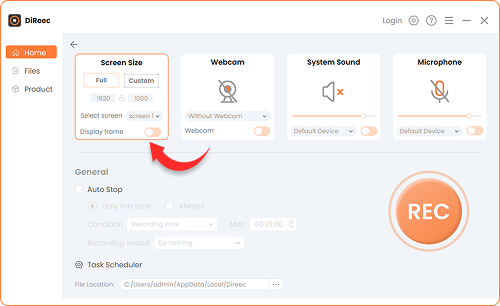
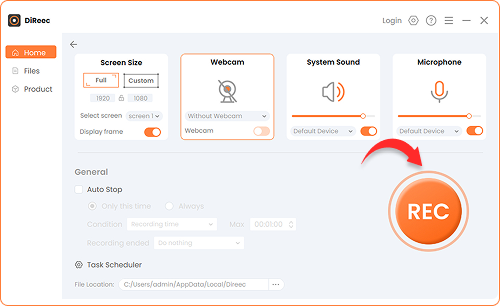
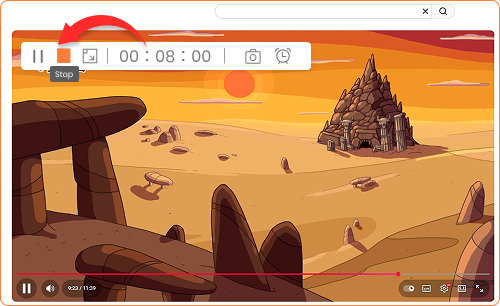
Step 1. Select Recording Mode
Choose whether to record the full screen or a custom region. You can also enable the microphone or webcam to capture your voice and face.
Pro YouTube Downloader is not available for iOS now
Leave your Email to get direct download links of the Pro YouTube Downloader for Windows & Mac, and Android.
Leave your Email to get direct download links of the Pro YouTube Downloader for Windows & Mac.
Join successfully. You will receive an email soon.
We've already sent an email to this mailbox.

4.8, 2.6K Ratings
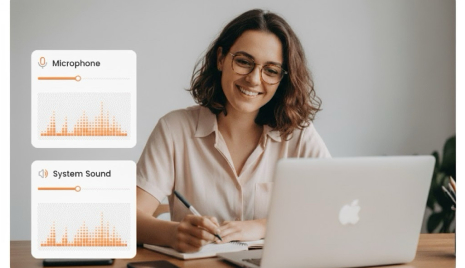
Record your screen with both system sound and microphone effortlessly. Capture diverse audio sources for tutorials, video explanations, or presentations with ease. With built-in noise reduction and sound effects, your recordings will have clear, high-quality audio every time.
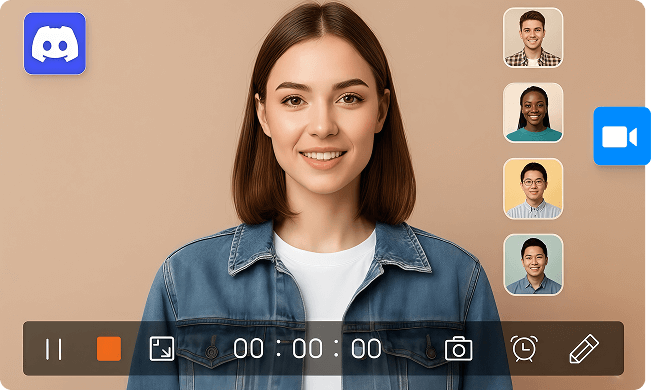
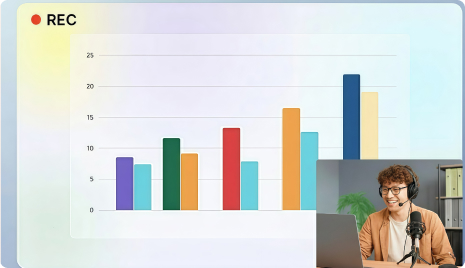
Simultaneously record your webcam and screen with this all-in-one screen recorder. Choose to show both or just your webcam feed as needed. Perfect for online meetings, presentations, and business videos. You can also adjust webcam position, size, or frame during recording for a personalized layout.
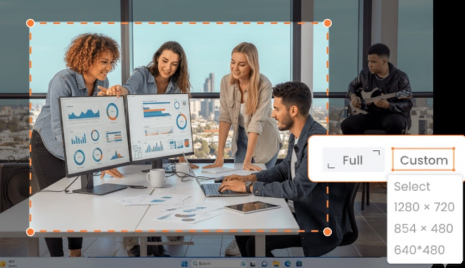
Capture any part of your screen in smooth HD without lag using our screen capture software. Record the full screen, a specific area, or custom dimensions like 1280x720 or 854x480. The software supports various screen sizes and modes, ensuring high compatibility and a flawless recording experience.
Enhance your screen recordings with annotation tools that let you draw, highlight, or add shapes while recording. Use arrows, circles, or notes to emphasize key moments in your videos. Ideal for creators looking for the best free screen recorder for tutorials, demos, or step-by-step guides, this feature helps make every video clear and interactive.
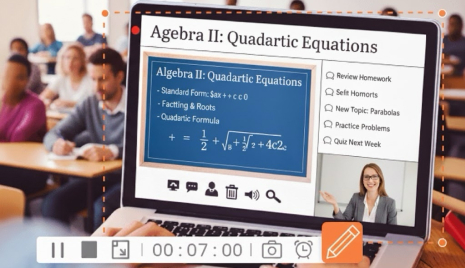
Make your lessons more interactive and clear with our easy-to-use screen recorder. Add annotations and use whiteboard tools to explain concepts and keep learners engaged.
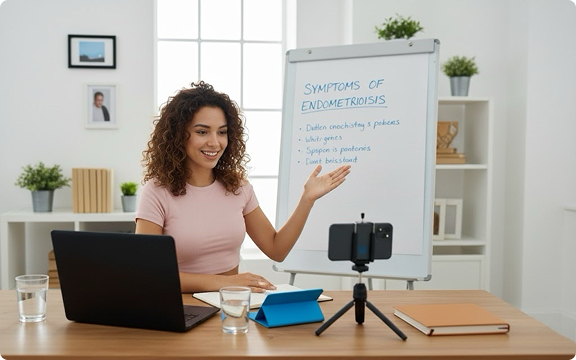
Use our screen recording software to record each step clearly and guide users through fixes or software setups. Ideal for IT teams, product demos, or remote support sessions.
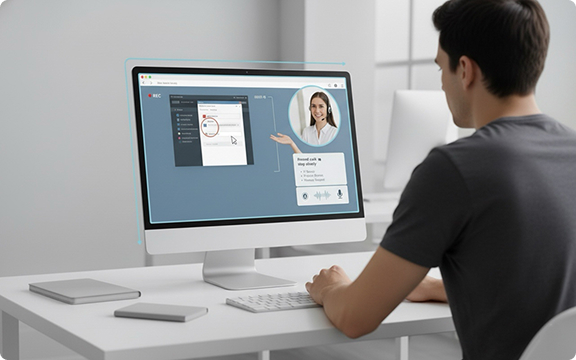
Create polished software demos or product tutorials using our screen recorder. Capture every click, highlight key features, and explain your workflows with crystal-clear sound and visuals.
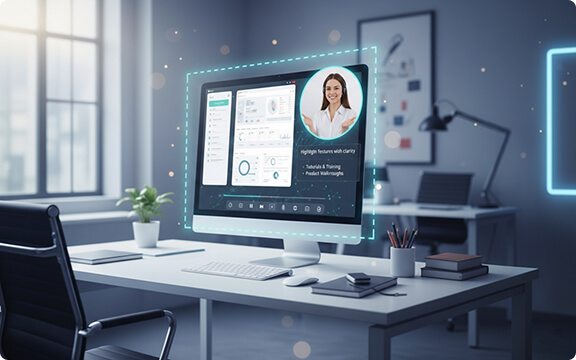
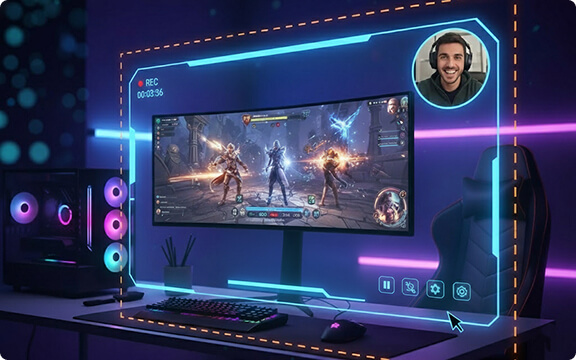
Relive your best gaming moments with smooth, high-quality screen recording. Capture gameplay, voice, and webcam at once with no lag, perfect for gamers, streamers, and content creators.

Ethan James

Olivia Grace
This screen recorder is super easy to use and navigate. I downloaded my video instantly and used it to teach my staff how to troubleshoot a math program. I’d definitely recommend it to anyone who wants something fast and efficient. It saved me so much time!

Liam Alexander
I love that I can record both my screen and myself explaining at the same time. It’s perfect for sharing my browser and showing clients exactly what I’m doing. Compared to other apps, this screen recording software works beautifully!

Sophia Hope
This screen recorder has made my remote work so much easier. I can easily record meetings, webinars, and demos without missing any details. The multiple output formats also make sharing and collaborating super convenient.
Our screen recorder is a top-rated tool designed for anyone who needs to capture their screen. It offers a variety of powerful features, including scheduled recording, multiple recording modes, custom hotkeys, and mouse cursor display. All these functions are available for Windows and Mac users.
Step 1. Install the Pro screen recorder for Windows, and launch it on your device.
Step 2. On the main interface, turn on the Screen option and select any other recording settings you need.
Step 3. Choose the area of the screen you want to capture, then click REC to start recording.
Step 4. When you’re done, click the Stop icon. Your recording will be automatically saved to your PC.
Before you start recording, click the Webcam icon. Then double-click the preview window to position your face overlay anywhere on the screen.
To record your voice, select the Microphone option before you start. If you want to capture system audio as well, click the Sound icon.
Step 1. Click on the Screen mode, adjust the recording area, and click REC to start.
Step 2. While you're recording, add annotation by choosing brush tool or the toolbar if necessary.
Step 3. Click the Stop icon when you’re done, preview your video, make any edits, and save the recording.
Yes. The video platform that our screen recorder is built on offers seamless playback on all devices, including desktops, tablets, smartphones, and even smart TVs. Anyone can watch your recordings smoothly, even with a slow internet connection.

The best go-to screen recorder! I’ve used this tool for recording workshops, meetings, and live classes. It works flawlessly every time. It’s such a convenient and reliable recorder. Great job, team!